
Your contacts list is stored on the Skype network. However, for peace of mind, you might want to create a backup archive of all your contacts to store on your PC. Skype archives your contacts list in vCard format, and this is also a good way to export your contacts to another application, many of which can import contacts in vCard format.
To backup your contacts list, go to
Skype>Tools>Archive Contacts>Backup Contacts to File …, and in the window that opens, choose a location and filename under which to store your contacts list and click on the Save button.
To restore deleted contacts, go to Skype>Tools> Archive Contacts>Restore Contacts from File …,
and in the window that opens, navigate to the file in which you stored your contacts list and click on the Open button.
Showing posts with label 4. Customizing Skype Options. Show all posts
Showing posts with label 4. Customizing Skype Options. Show all posts
Thursday, March 31, 2011

Thursday, September 30, 2010
Finding Skype Zones Access Point

To use the Skype Zones client program to search for access points, first open the client by going to Start: All Programs: Skype Zones: Skype Zones. Next, click on the link Find A Location, which displays a search page, as shown in the figure. Frankly, the only advantage of using the search facility in the Skype Zones client program is that it works even when you are not connected to the Internet (the list of available access points is downloaded to your PC and is periodically updated). However, it doesn’t always have the most up-to-date list of available access points.
Saturday, July 31, 2010
Using Call Forwarding
How quickly calls are forwarded depends on your online status. The following table indicates the how quickly calls are forwarded based on your online status.
Armed with the information in this table, you can decide how best to use call forwarding. You can set your online status (Online, Skype-Me, Away, Not available, or Invisible) so that if you are at your PC you have the option of taking the call then and there; and only if you don’t pick up will Skype forward the call. Or you can set your online status (to Skype not running or Offline) so that Skype always and immediately forwards all incoming calls to the destination (or destinations) of your choice.
Setting Up Call Forwarding
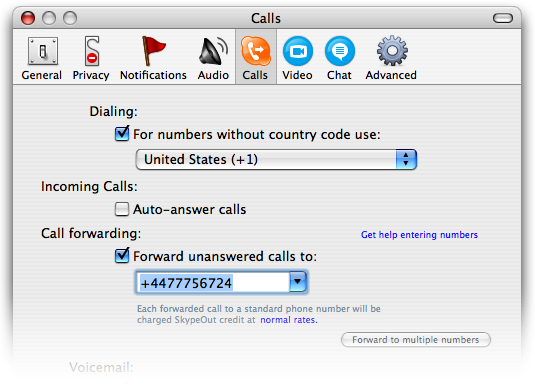
To set up call forwarding, go to Skype: Tools: Options …, and in the window that appears, click on Call Forwarding & Voicemail. This displays the option settings for both call forwarding and voicemail. To activate call forwarding, check the box opposite Forward calls when I’m not on Skype. The default setting, also called the basic setting for call forwarding, allows you to forward a call to one destination. Advanced call forwarding allows you to forward incoming calls to up to three different destinations. When a call is forwarded, it rings all forwarded destinations at the same time; whichever destination picks up first gets the call. You can switch between basic and advanced call forwarding settings by clicking on the links Basic Settings and Advanced Settings, respectively.
Setting Up and Using call forwarding

It allows you to reroute incoming calls to other phone numbers, including Skype numbers, regular numbers, and mobile numbers. To forward calls to regular and mobile phones, you must be a subscriber to SkypeOut, and forwarded calls will be billed just as though you had personally called the forwarding destination phone from your PC using Skype. Incoming calls to your Skype account from both other Skype users and from regular and mobile phones (if you’re a SkypeIn subscriber) are forwarded in the same way.
Wednesday, June 30, 2010
Listening to voicemails
 Missed calls, like other Skype events, are flagged for your attention in the New Events tab (which is the second tab from the right) of the notification bar. Click on this tab to see recent missed events, including voicemail messages that have been left for you, as shown in the following figure.
Clicking on a voicemail event in the New Events tab of the notification bar takes you to the History tab, as shown in the next figure. Voicemails that you have not yet listened to are flagged by a red dot with a star. By clicking on the green round button with an arrow on it to the right of the voicemail item, you can listen to your voicemail using the audio-out device you have configured for Skype (for example, headphones or speakers).
How to Direct Call to Voicemail?
 To have unanswered incoming calls directed to your voicemail, simply put a tick in the box opposite Send Unanswered Calls to Skype Voicemail. If you want to control how and when calls are redirected to voicemail, click on the Advanced Settings link alongside Send Unanswered Calls to Skype Voicemail. This generates a window in which you can customize how your voicemail behaves, as shown in the following figure.
How to add personalized message to voicemail?
 By default, you are given a rather bland “The person you are trying to call is not available …” prerecorded message. This is what callers hear when they are redirected to your voicemail. However, you can replace the prerecorded message with a personalized greeting of up to sixty seconds in duration.
Go to Skype: Tools: Options …, and in the window that appears, click on Call Forwarding & Voicemail. A settings window appears, as shown in the next figure.
Look under the heading “Welcome Message” at the bottom of this page. To record a personalized greeting for your voicemail, click on the middle square button with the red circle on it. Speak into your microphone (or headset or handset) to record your greeting and then either click on the same red button again to cut the recording short, or let the recording run to the end of its allotted 60 seconds. You can now review your greeting by clicking on the green square button with an arrow on it. Now, when callers are directed to your voicemail, they will hear your personalized greeting message.
If you’re not satisfied with the greeting, you can either rerecord it by hitting the middle red square button again and repeating the recording procedure, or you can click on the red square button with a circular arrow on it to reset your greeting to the default message.
Friday, May 23, 2008
Improving Your Skyping with Advanced Options

Advanced options are not absolutely essential to using Skype, but they can make things smoother. The options are as follows:
- Startup: If you anticipate using Skype frequently, you may want to have Skype start up automatically whenever you power on your computer.
- Automatically Answer Incoming Calls: Unless you have a special need to automatically connect to whomever calls you at the very first ring, you should leave this option disabled. There are special circumstances when you would want to automatically answer incoming calls, however.
- Enable Contacts List and History Quickfiltering: Choosing this option tells Skype to quickly locate any contact in either your Contacts list or history of chats by simply typing in any portion of a name. Only those items that match appear. As your list of Skype contacts and chats grow, Quickfiltering becomes an indispensable tool.
- Automatically Pause Winamp: Winamp is a freeware player that enables you to play music and video content. Winamp has many plugins (see www.winamp.com/plugins) that enable you to use it in conjunction with other programs. The advanced settings in Skype let you automatically pause Winamp during an incoming call. Suppose you’re working at your desktop and enjoying some peaceful music on your computer’s CD player. Suddenly you’re interrupted by a Skype caller. You answer the call, but the music hasn’t stopped playing! You’re hearing both the music and your Skype buddy at the same time. Your buddy isn’t hearing any of your music and doesn’t know why you sound so confused as you frantically scramble to stop the music. Wouldn’t it be nice if the music automatically shut off when you answered your Skype call? If your computer uses Winamp to play music, as many computers do, you can enable the Automatically Pause Winamp During Calls feature.
Keeping Up-to-Date With Skype

Some people like having their application software always up-to-date. Others want to be told when a new version of their software is available, whereas others blissfully chug along without annoying reminders. Which kind of person are you? Whatever your preference, Skype lets you set it. Skype lets you set your preferences for both major updates by choosing Options➪Updates and then selecting one of the following;
- Download Automatically: This option automatically checks to see whether a new version of Skype is available whenever Skype starts up; if one is, Skype automatically downloads it.
- Ask before Downloading: This option is similar to the automatic download, but it politely asks you for permission before downloading.
- Ignore: In choosing this option, you are instructing Skype to take no action to download new versions of Skype unless you manually choose to download Skype.
Between major releases, Skype may introduce minor releases or hotfixes. You have the same set of options available to you for downloading hotfixes as you do for downloading major releases of Skype. On the same screen where you set your preference for major Skype releases, you can set your preference for hotfixes and select Download Automatically, Ask before Downloading, or Ignore.
Customizing your skype firewall settings

Remarkably, Skype works in many corporate environments without any customized setup even when your organization’s firewall would stop other software programs from connecting to the Internet. For the most part, if your company’s firewall allows you to connect to the public Internet through your Web browser, you should be able to use Skype without difficulty. Here are some troubleshooting steps you can try if your firewall is stopping incoming or outgoing Skype traffic:
- Run your Skype incoming connections through ports 80 and 443: If you are having difficulty connecting to the Internet over Skype after establishing your proxy settings, look to see that a check mark appears next to Use Port 80 and 443 as Alternatives for Incoming Connections. You can find this setting by choosing Tools➪Options and clicking Connection from the list of options in the left panel. If the Use Port 80 and 443 as Alternatives for Incoming Connections option is not checked, select it, save your settings, and retry Skype.
- Open your external firewall: If your company is running an external firewall, ask your network or security administrator to configure the firewall to allow for Skype traffic.
- Open your internal firewall: If you are running your own personal firewall and have administrative rights on your computer, here are some steps you can take:
- Run your personal firewall software.
- Check to see whether there is currently a rule that specifically prohibits Skype traffic. The first time you ran Skype, your personal firewall server may have prompted you when it detected Skype traffic and suggested that it be blocked. If you gave the OK to block the traffic, Skype cannot communicate with the outside world. Your solution is to find the offending rule and remove it.
- If you can’t find the rule that blocks Skype, the following may work: Uninstall Skype and re-install it. The next time Skype runs, your personal firewall may prompt you about what to do. This time, you can tell it to allow the Skype traffic.
- Your personal firewall software may not have any rules about Skype and may need to be explicitly told that network traffic associated with Skype should be allowed. You must add Skype to your firewall’s list of allowed programs.
- Find further information on the Skype Web site: Go to www.skype.com/help/guides/firewall.html to find information about specific Skype firewall setups including Windows XP SP2 Firewall, Norton Personal Firewall, Zone Alarm Pro, and McAfee Firewall Pro.
Wednesday, May 7, 2008
Working with internal and external firewalls

A firewall watches incoming and outgoing network information and acts as a kind of traffic cop to halt or prevent anything that is not specifically allowed to slip through a defined defense perimeter. Typically, large corporations have dedicated firewalls that create a defense perimeter around the whole corporate network or specific network segments. These are external firewalls. If your company has an external firewall that intercepts and blocks incoming or outgoing Skype traffic, you will have to ask your network or security administrator to open the firewall to allow Skype traffic to move through the company network.
Many small companies and individuals do not have a dedicated external firewall, but instead have an internal firewall that runs in software on each individual computer. This kind of firewall sets up the defense perimeter around your computer.
Customizing your Skype proxy settings

Some companies require you to apply special settings to connect your Web browser to the Internet. Generally, your Skype Connection settings should closely match those of your browser.
Most of the time, you won’t have to tweak your settings because Skype usually works without any fiddling.
If you require a custom connection, perform the following steps:
- Choose Tools➪Options➪Connection from the Skype application menu. The Connection panel appears.
- Set your mode for proxy detection and fill in host and port information. A drop-down list provides for Automatic proxy detection, HTTPS, or SOCKS. Your System or Network Administrator should be able to tell you whether your connection is going through HTTPS or SOCKS, and he or she should be able to give you the hostname (it may be an IP address) of your proxy server and a port number. Fill in this information.
- Enable proxy authentication. You may need to select the box for Enable Proxy Authentication and provide a username and password.
What is Focus Skype and what is the WinKey?

Your computer can “focus” on only one application or window at a time. When you click in a window, your computer switches its focus to the program associated with that window. Focus Skype is a directive that tells the computer you want the main Skype window to appear. It’s kind of like summoning the genie in the bottle, but the genie is Skype.
On the keyboard of many Windows-based computers is a special key that fires up the Windows Start menu. The key, called the WinKey, looks somewhat like a wavy flag. Because the key is not generally used for anything other than summoning the Windows Start menu, it’s an ideal candidate for customized hotkeys in your applications.
Friday, May 2, 2008
How to Customize Hotkeys in Skype?

Keyboard jockeys are in for a treat. You can easily create your own hotkey settings to juggle your Skype tasks such as answering calls, putting someone on hold, hanging up, and more, all at the touch of a keystroke. The following example makes clear how to create your own hotkey. Suppose that you want to make the Skype window appear instantly at a keystroke. Here’s what you can do:
- Click the Hotkeys menu appearing in the left panel of the Options window. The items and buttons appearing under the Enable Global Hotkeys check box are all grayed out.
- Select the Enable Global Hotkeys check box to activate the hotkeys.
- Select Focus Skype and then click the Change Hotkey button. The window shown on the right side of Figure 4-11 pops up.
- Enter the letter A or any letter of your choosing in the text box and click OK. This step enables the Focus Skype action.
- Save your Hotkey settings.
Changing your Skype Sound Devices settings

Sound Devices settings pertain to Audio In, Audio Out, and Ringing. Choices here relate to Windows Default Sound Device and any custom Sound Cards installed on your computer. Unless you have some special requirement, you should leave these options alone. If you’re not sure whether your system has a special requirement, it probably doesn’t. One situation in which sound device settings may need to be adjusted is when you wish to use a USB phone and speakers for a new HiFi system at the same time. In such a situation, you can do the following:
- Choose Start➪Settings➪Control Panel➪Sounds and Audio Devices. The Sounds and Audio Devices Properties window appears. (Depending on your operating system and how you have it configured, you may have to navigate to the Windows Sounds and Audio Devices control panel differently from the way described in this step.)
- Click the Audio tab of the Sounds and Audio Devices Properties window and then select your sound card as the Sound playback default device.
- Click the Voice tab and select your sound card as the Sound playback default device. Click the OK button to save and close your Sounds and Audio Devices Properties window.
- In your Skype application, choose Tools➪Options➪Sound Devices. The options to choose here are for Audio In and Audio Out. Choose your USB device for each.
Sunday, April 27, 2008
Playing with bells and whistles

A virtual cacophony of sounds awaits your selection, depending on your mood and how much idle time you have to fool around and experiment with what suits your fancy. You can choose from a variety of dial tones, busy signals, connecting buzzes, on-hold tones, and many others from the sounds panel list If you wish, you can import sound files directly from your hard drive or even purchase and download sound files from the Skype Web site. Choosing Tools➪Ringtones➪Get Latest Ringtones takes you to Skype’s personalization Web site This site allows you to try different ringtones before you choose to buy them Skype can play WAV sound files. If you have an MP3 file, you can convert it to a WAV-formatted file by using programs such as Audacity and QuickTime Pro. Plenty of other programs make this conversion as well.
Customizing Your Skype Sounds

Remember the uproar around Classic Coke? The Coca-Cola Company changed the formula, introduced a new beverage, and suddenly everyone became nostalgic for the old taste. Well, the designers of Skype wisely kept its classic, familiar ringtones when they added a snazzy new group of modern sounds for the following:
_ Busy Signal
_ Call on Hold
_ Connecting Call
_ Contact Online
_ Dial Tone
_ Hang Up
_ Incoming Chat
_ Resuming Call
_ Ringtone
Skype allows you to customize your ringtones by importing WAV files purchased on the Internet or even by importing your own digital recordings. Skype further lets you manage its behavior by controlling the sound devices on your computer. The following sections explain how to customize Skype in this regard.
Thursday, April 24, 2008
Receiving Notifications when Someone Skypes You

Skype provides a number of notifications that alert you, by on-screen messages or through sound effects, when someone on your Skype Contacts list comes online or does the following:
_ Calls you
_ Starts a chat with you
_ Sends you a file
_ Requests your contact details
_ Sends you contacts
_ Leaves you a Voicemail message
To choose what notifications you want Skype to provide you with, click
Notifications in the Options window to display the Notifications panel. Depending on how you like to work, any or all of these notifications
can serve you well or be an annoyance. You might want to start by enabling all the notifications (do so by clicking the box next to each option) and then see how they work out for a while. You can go back and alter your settings anytime.
Another type of notification setting, which appears at the bottom of the Notifications menu, is Display Messages for Help/Tips. Enable this setting if you want Skype to alert you to various kinds of supplementary services available from Skype such as SkypeOut, SkypeIn, or sending SMS messages, which are fee-based services.
Skype can notify you when any of your Skype contacts come online. If you start accumulating a lot of contacts, you may find this feature distracting and sometimes even downright annoying. If you happen to use a wireless network and your connection cuts in and out, then after the connection resumes, you can get alerts displaying the contacts that appear to come online all at one time. Sometimes, too much of a good thing may not be so good! For this reason, many skypers choose to keep the setting for Someone Comes Online disabled.
As you become familiar with Skype and don’t require all the helpful hints and suggestions, you may want to turn off Help/Tips because it, too, is distracting by constantly suggesting and displaying links to services that have nothing to do with what you are doing at the moment, such as SkypeOut, SkypeIn, or sending SMS text messages.
Customizing Your Sounds
Remember the uproar around Classic Coke? The Coca-Cola Company changed the formula, introduced a new beverage, and suddenly everyone became nostalgic for the old taste. Well, the designers of Skype wisely kept its classic, familiar ringtones when they added a snazzy new group of modern sounds for the following:
_ Busy Signal
_ Call on Hold
_ Connecting Call
_ Contact Online
_ Dial Tone
_ Hang Up
_ Incoming Chat
_ Resuming Call
_ Ringtone
Skype allows you to customize your ringtones by importing WAV files purchased on the Internet or even by importing your own digital recordings. Skype further lets you manage its behavior by controlling the sound devices on your computer. The following sections explain how to customize Skype in this regard.
Subscribe to:
Posts (Atom)