Showing posts with label 7. How to Chat Strategically?. Show all posts

Tuesday, September 29, 2009

Skype Alternatives


Skype isn’t the only Internet-telephony game in town! Even though this book is primarily about Skype, you should also know that there are other Internet-telephony providers that are even cheaper than Skype for some types of call. For example, VoIP Buster offers free calls to regular landline phone numbers in the following countries: Andorra, Australia, Austria, Belgium, Bulgaria, Canada, Chile, Colombia, Croatia, Cyprus, Denmark, Estonia, Finland, France, Georgia, Greece, Hong Kong, Iceland, Ireland, Italy, Japan, Latvia, Liechtenstein, Luxembourg, Malaysia, Monaco, Mongolia, Netherlands, New Zealand, Norway, Panama, Peru, Portugal, Puerto Rico, Singapore, Slovenia, South Korea, Spain, Sweden, Switzerland, Taiwan, Thailand, and Venezuela. In addition, you can even get a free regular dial-in phone number for select countries. Check the VoIP Buster website, www.voipbuster.com, for details and restrictions.
You might also want to check out some of the other alternatives to Skype shown in the following table. This list is by no means exhaustive, but it’s a starting point for you to shop around for the best deal—and best features—in Internet telephony.

Wednesday, August 13, 2008

Opening your windows


Skype sets the area you use to write text as the smallest box in the chat window. It doesn’t have to stay that way, though. You can “grab” the top of the text window and pull it up to have more space to write and see what you have written. Enlarging the space allows you to view paragraphs of text you are editing and are about to send to your fellow skypers, instead of being able to view just a few lines in the text input area. As with other Instant Message programs, you can expand the chat window to make it a full screen.

Another way to clean your window is to right-click in the body of the message window and select Clear Messages, which wipes out all the messages in your window. Fortunately, your neatness doesn’t clean out anyone else’s windows. If you really want to pare down your messages to their simplest form, change the chat style in the message window to IRC (Internet relay chat). Choose Tools➪Options➪Advanced and select IRC-like Style from the Chat Style to Use menu. Deselect the Show Timestamp with Chat Messages option. Your chat window will hold more messages in a smaller space (but might be harder to read).

Thursday, July 24, 2008

How to change your text size and style?


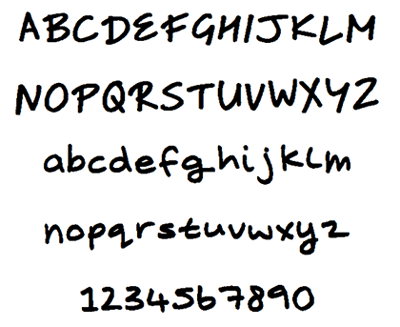
Changing the font and increasing the font size may be both decorative and practical. Large fonts are easier to see. Fonts with serifs are more formal as well as easier to read, but they take up more space. You can change the fonts by selecting the Font pop-up menu just above the writing box in your chat window. You can experiment with each font to see which is best for you. Note that changing fonts may replace the shaded separator bars with outlined placeholders (which may or may not be empty), but forfeiting shaded separator bars is a small price to pay for legibility. Any font changes you make in your chat window are for your eyes only. Other chatters do not see your font selections.
If you change your font size and style and are totally miserable, don’t despair; you can restore the default font. It’s Tahoma, 8 points, Western script.

How to hide your contacts?


You may want to simplify the chatscape so that you can see more of the text window. Click the Hide Users button to eliminate the Contacts list and expand the user text window. You still know who is chatting, and you can bring your Contacts list back at any time by clicking the Show Users button.

How other skypers can get your attention?

With Skype, you can choose how you are notified when someone invites you to a chat. You can have a chat window open immediately when the chat starts, or you can have a pop-up alert tell you that someone is waiting for your attention. You can even decide not to have any obvious alert, although you may still like to have the option of knowing that a chat is about to start.
Select from the following types of options:
  • Show alert pop-up: Choose Tool➪Options➪Notifications and select Display Notification, If Someone Starts a Chat with Me.
  • Show chat window: Choose Tools➪Options➪Advanced and select Pop Up a Chat Window When Someone Starts a Chat with Me. Click the Chat alert to expand the window and type away in the text box.
If you don’t respond to an alert, your Skype window indicates that one new event has occurred. If you click the chat event link, your chat window opens for business. You may hear a sound alert if you have chosen Tools➪Options➪Sounds and selected the check box next to Play Sounds. These options (well, two of them) are a little like call screening. You want to know who is calling, but you want to choose your chats carefully. A highly social person with a long contact list can easily be overwhelmed with willing, needy, or just plain gregarious skypers. It’s nice to have some control over your time and privacy.

Sunday, July 13, 2008

How to bookmark a chat?


Some chats are worth setting aside in a special place for quick access. Skype has a bookmarking feature for these chats. You can bookmark only chats that have a topic, Web site, emoticon, or email in the topic bar; otherwise, the pushpin-style icon used to mark the chat is not shown. To set up a bookmark, click the pushpin icon in the chat topic bar. When this icon is “pushed in,” the chat appears in a special list that you open by choosing Tools➪Bookmarked Chats.

How to return to former chats?


Just because you left a chat doesn’t mean that the chat has disappeared. You can log off of Skype, log back on, and continue a chat that was started previously. To find your former chats, choose Tools➪Recent Chats and pick the chat you want. Chats are identified by Skype Name and the first line of the chat, or by the topic name if one was chosen and entered. Click the topic and the chat reappears.

If your chat partner is offline when you resume the chat, you may see a gray icon with an X inside it in the chat participant list. When your chat partner is logged on to Skype, the icon in the participant list appears green. A white check mark or a little clock symbol appears next to the green icon, depending on whether the participant is available or away. You can still send a message, or receive a chat message, whether you indicate through your status icon that you are not to be disturbed, away, or otherwise unavailable. However, Skype —again doing your dirty work for you — explains why you don’t answer.

How to leave a chat?


When you want to close a chat, just click the round red button with the white X inside in your windows heading bar. The chat window closes but the chat is still active. To reopen the chat window, select the name of the contact you were chatting with and click the Chat button. The same chat window with the same text appears. You can pick up where you left off before you closed the chat window.

How to Chat Strategically?


Do you ever get a sensitive telephone call at work and find yourself whispering your way through the conversation? Or perhaps you are calling someone on your cell phone and the signal stops. Well, the Skype environment gives you both the opportunity to communicate privately and the choice to type or talk. You can receive a Skype voice call and respond in a chat window. The half-voice, half-chat conversation is a great solution to the open office or portable cubicle work area.

Another reason for a half microphone/half chat conversation is that sometimes you may not have a microphone available. Your sound preferences may not be working properly, so you can’t hear the caller’s voice (or your caller may be your 86-year-old dad who has no idea what a sound preference is or how he would change it). Having an alternative way to respond to a call provides a simple way to overcome the personal and technical glitches that trip us up on a daily basis.