
Instead of buying pictures and ringtones from the Skype shop, you can download free pictures and ringtones from the web, or you can make your own. The latter option is the ultimate in personalization!
Here are some suggestions for personalizing your Skype softphone:
Free pictures and ringtones: Enter “Free Skype (pictures OR sounds OR ringtones)” into any search engine and you are sure to get a lot of useful hits. But to get you started, I’m going to suggest a few websites. For free Skype-compatible pictures and ringtones try: www.themeskype.com, gallery.mobile9.com/c/wavringtones/ 1, and www.voipfaq.net.
Make your own pictures: You can make your own picture for use with Skype using any application that can make, or convert, pictures to .png, .jpg, or .bmp formats. Perhaps the simplest way to do this is to use Microsoft Paint, which comes bundled with your Windows operating system (Start: All Programs: Accessories: Paint). In Paint, go to Image: Attributes, and in the popup window that appears select Pixels under Units, set both the width and height of your image to 96, and then click the OK button. Use the drawing tools of Paint to create the picture you want. When you’re satisfied with the result, go to Paint: File: Save As … and in the window that appears, navigate to My Documents\My Skype Pictures. From the Save as type pull-down menu, select PNG, and type a file name for your picture. Click the Save button and your picture will be added to those already available for use by Skype. To use the picture you created in your Skype profile, follow the instructions that come later in this chapter for adding a picture to your online profile.
Make your own sounds: Sounds and ringtones for Skype are small .wav files. Any application that can generate mono .wav files can be used to create a custom sound or ringtone for use with Skype. Perhaps the easiest way for Windows users to create such sounds is to use the Sound Recorder program that is bundled with Windows (Start: All Programs: Accessories: Entertainment: Sound Recorder). Using Sound Recorder you can record sounds you make through your microphone and even mix them with sounds from other .wav files you have on disk (Sound Recorder:Edit: Mix With File …). Sound Recorder even comes with some very basic tools for modifying sounds, such as Add Echo and Reverse, available from the Effects menu. Once you’re happy with the sound you have made, which should be 30 seconds or less in length, go to Sound Recorder: Save As … and in the window that pops up, navigate to My Documents\My Skype Content. If the format for the file you are about to save isn’t some flavor of mono, click on the Change … button and make it so. Enter a file name for your sound, and then click on the Save button. This will make your new sound available to Skype.
Showing posts with label 5. Getting Personal with Skype. Show all posts
Showing posts with label 5. Getting Personal with Skype. Show all posts
Tuesday, May 31, 2011

Personalise skype shop

You can buy pictures and ringtones from the Personalise Skype shop at http://personal.skype.com. Pictures and ringtones cost $1.20 (1 ) apiece. Note that before you can buy pictures or ringtones from the Personalise Skype shop, you must have some Skype credits.
To buy a Skype picture, go to http://personal.skype.com. This displays a page featuring pictures and ringtones. Click on the Pictures link that appears on the left side of the page. This displays pictures grouped by category. Click on the name of any picture to see that picture, or click on one of the categories to see all pictures for that category. To purchase a picture displayed in a preview page, click on the Buy now link. This takes you to the Skype sign in page, where you must enter your Skype name and password to proceed. Follow the instructions to purchase and download the picture.
Once you have successfully downloaded the picture, a My Pictures window will pop up. Double-click on your newly purchased picture and it will be added to your Skype profile. To buy a Skype sound or ringtone, return to http://personal.skype. com. This once again displays the pictures and ringtones page. Click on the Ringtones or Ministry of Sound links on the left side of the page. This displays some popular ringtones, and also shows categories (such as Classics, Swing, Chill Out and so on) for ringtones. Pick a ringtone, and then click on the listen button to listen to it, or click on a category name to display all the sounds in that category. Once you have found and listened to a sound you want to buy, click on the Buy now button. This will take you to the sign in page for Skype; enter your Skype name and password, then click on the Sign me in button. On the next web page, put a check mark in the box accepting the terms and conditions of your purchase, then click on the Confirm purchase button. Follow the instructions to download, and your new sound will be added to the My Sound Library list in the Sounds page of your Skype Options window, which should open automatically when your download is complete, as shown in the next figure. You are now free to use your new ringtone sound to signal one or more of Skype’s many events, including incoming calls.
Saturday, April 30, 2011
Adding pictures and avatar in Skype
 Adding pictures or avatars to your Skype profile gives you a visible online persona (go to Skype: File: Edit My Profile …, and in the window that opens, click on the Change … button). It is the primary means by which you are seen and recognized by others in the Skype online community. Because your Skype picture can be any image, you are free to let your imagination—and ego—run wild!
Skype also allows you to personalize your interaction with the Skype softphone by associating different sounds with different events (go to Skype: Tools: Options …, and in the window that opens, click on the category Sounds). Skype comes with a wide variety of sounds and ringtones but you can also add your own. You can download sounds and ringtones from the Internet or you can create your own.
How to Make an Interesting Skype Name?
You can decorate your online profile name to make it stand out from other names in a contact list. You can even exert some control over where you appear in those lists: toward the top, or toward the bottom. To decorate the name others will see for you in their contacts lists (unless, of course, they manually rename your entry in their lists, see Chapter 10), open a word processor such as Microsoft Word. In the word processor, using the keyboard and the symbol box (Insert:
Symbol …), construct a name. Remember that, in addition to the letters A through Z and numbers, you can incorporate punctuation marks and nonstandard characters, as shown in the following figure.
Once you’ve created a name, copy it to the clipboard (for example, in Microsoft Word, use the keyboard to type Ctrl+A followed by Ctrl+C; that is, hold down the Control key and press A then C). Next, open your Skype profile by going to Skype: File: Edit My Profile … and paste your decorated name into the field labeled Full Name (click on the field and hit the Shift+Ins keys). Then click on the Update button.
Congratulations, you now have a name that stands out from the crowd in the contact lists of other Skype users, as shown in the following figure. Note that not all nonstandard characters will work when pasted into the Full Name of your profile, so you’ll have to experiment a little. Also, bear in mind that decorated names that begin with any of these characters ! “ # $ % & ‘ ( ) * + ,—. / will appear at the top of a contact list, even before names that begin with a digit. Alternatively, a decorated name that begins with a nonstandard character, such as one of these, § £, will appear at or near the bottom of someone’s contact list.
Symbol …), construct a name. Remember that, in addition to the letters A through Z and numbers, you can incorporate punctuation marks and nonstandard characters, as shown in the following figure.
Once you’ve created a name, copy it to the clipboard (for example, in Microsoft Word, use the keyboard to type Ctrl+A followed by Ctrl+C; that is, hold down the Control key and press A then C). Next, open your Skype profile by going to Skype: File: Edit My Profile … and paste your decorated name into the field labeled Full Name (click on the field and hit the Shift+Ins keys). Then click on the Update button.
Congratulations, you now have a name that stands out from the crowd in the contact lists of other Skype users, as shown in the following figure. Note that not all nonstandard characters will work when pasted into the Full Name of your profile, so you’ll have to experiment a little. Also, bear in mind that decorated names that begin with any of these characters ! “ # $ % & ‘ ( ) * + ,—. / will appear at the top of a contact list, even before names that begin with a digit. Alternatively, a decorated name that begins with a nonstandard character, such as one of these, § £, will appear at or near the bottom of someone’s contact list.
Thursday, March 31, 2011
Sharing Your Skype Contacts

You can share selected contacts from your contacts list by sending them to others. This is a nice way to build a community with common interests; for example, a club, family, or work group. You can use either of two methods to send your contacts list, or a subset of it, to other Skype users:
- You can go to Skype: Contacts: Send Contacts …, which displays a window in which you can form a list of your contacts to send to a specified list of Skype recipients (a comma-separated list of Skype user names).
- You can selectively choose multiple entries in your contacts list by left-clicking on them while holding down the control key on your keyboard, and then right-clicking on one of the highlighted entries. From the popup menu that appears, choose Send Contacts …, which displays the same window as before, but with the Send contacts to field filled in with a comma- (or semicolon-) separated list of the names you selected, as shown in the following figure.
Friday, December 31, 2010
Understanding Skype Online Status
Before discussing how to change your online status, you should know what each status means:
Offline The Skype user is offline. Being Offline means that the user has disconnected from the Skype network.
Online The Skype user is online. Online means that the Skype user is ready to make and receive calls, chat, and voicemail. It also means that the user can send and receive files.
Skype-Me The Skype user is in Skype-Me mode. Skype-Me mode means, in effect, that you are making yourself available to the wider Skype community, because while in this mode your privacy settings are ignored. Anyone can call you while you are in Skype-Me mode.
Away The Skype user is away from Skype. Online status changes to away when the PC on which Skype is running has been inactive for a period of time that you can specify the default is five minutes.
Not Available The Skype user is not available. This online status is similar to Away, but indicates that the user has stepped away from the PC running Skype for a prolonged period. You can specify the period of inactivity before Skype switches to Not Available the default is 20 minutes.
Do Not Disturb The Skype user does not want to be disturbed. While in this mode, you won’t be pestered by popup notifications of incoming calls or chat.
Invisible The Skype user has chosen not to make his or her online status visible to others. However, when online the privacy settings for that Skype user remain in effect.
Skype>File>Change My Online Status, and then choose the online status you want. Or you can use the pull-down menu at the bottom left of Skype’s softphone main window.
Offline The Skype user is offline. Being Offline means that the user has disconnected from the Skype network.
Online The Skype user is online. Online means that the Skype user is ready to make and receive calls, chat, and voicemail. It also means that the user can send and receive files.
Skype-Me The Skype user is in Skype-Me mode. Skype-Me mode means, in effect, that you are making yourself available to the wider Skype community, because while in this mode your privacy settings are ignored. Anyone can call you while you are in Skype-Me mode.
Away The Skype user is away from Skype. Online status changes to away when the PC on which Skype is running has been inactive for a period of time that you can specify the default is five minutes.
Not Available The Skype user is not available. This online status is similar to Away, but indicates that the user has stepped away from the PC running Skype for a prolonged period. You can specify the period of inactivity before Skype switches to Not Available the default is 20 minutes.
Do Not Disturb The Skype user does not want to be disturbed. While in this mode, you won’t be pestered by popup notifications of incoming calls or chat.
Invisible The Skype user has chosen not to make his or her online status visible to others. However, when online the privacy settings for that Skype user remain in effect.
Skype>File>Change My Online Status, and then choose the online status you want. Or you can use the pull-down menu at the bottom left of Skype’s softphone main window.
Understanding Skype Offline Status

To change the details of your online profile at any time, go to Skype>
File> Edit My Profile …. This displays the My Profile form in a window, as shown in the figure.
The details of your online profile are divided into three categories:
- Details that all Skype users will see
- Details that only your contacts will see
- Private details
First, you can add a picture to your profile. When you call or chat with another Skype user, this picture appears in his Skype softphone. Skype comes with a set of default pictures that you can use, or you can purchase more using the Personalise Skype service. To change the picture for your profile, simply click on the Change … button and a window titled My Pictures will pop up with a list of available pictures. Click on a picture and then click the OK button to change the picture in your online profile. Second, including a valid e-mail address in your profile has both advantages and disadvantages. A valid e-mail address is necessary in order to reset your password should you forget your current password, and it also means that you will get 30-day and 7-day warnings when your SkypeOut credits are in danger of expiring. On the other hand, adding an e-mail address to your online profile also enables others to search for you using this e-mail address; that is, a Skype search using your e-mail address will return your Skype user name. This means that friends who know your e-mail address, but not your Skype user name, can find you. But it also means that people who you don’t want to talk with can find your Skype user name if they know your e-mail address.
Monday, May 31, 2010
How to Pick SkypeIn Number?

When you get a regular phone number from your local telephone company, you are typically only given the option of getting a number with the local area prefix of your geographic location. That is, you are restricted to dial-in numbers for the area where you live. This is not the case with SkypeIn numbers. With SkypeIn there’s nothing stopping you from having a London, England, number, even if you live in New York. Even better, there’s nothing stopping you from getting SkypeIn numbers for London and New York; and, based on your needs, dial-in numbers dotted around the globe. Welcome to the new world of Internet telephony!
At the time of this writing, SkypeIn numbers were available for the following countries: United States, United Kingdom, Denmark, Estonia, Finland, France, Germany, Poland, Sweden, Switzerland, Brazil, and Hong Kong. Within each of these countries you are typically given the choice of several area codes to choose from. You can choose any country and available area code within that country for your SkypeIn number; you will have to choose from a predefined list of numbers for the digits that follow the area code. By choosing the country and area code carefully, you can have a SkypeIn number that best meets your needs—for example, to allow toll-free local calls for friends and family. Indeed, following this logic, you can pick and choose several SkypeIn numbers to minimize the hassle and cost of calls for your most frequent callers. This way, for example, you can have a local dial-in number for your home in New York and a dial-in number in Seattle for the convenience of your mom and dad living in the Seattle area.
Thursday, July 30, 2009
Skype's P2P Architecture

The Skype network can be thought of as a mesh of computers that connect with each other over the Internet. As noted previously, Skype uses what’s known as a P2P architecture, wherein each computer—called a “node”—runs the same software and is treated equally. Some nodes in the network are designated “supernodes” and take on some of the tasks necessary to help organize and manage the network. Even though such nodes are designated “supernodes,” they still run the same software as any regular node, and a node can become a supernode at any time, and vice versa. The important concept to understand is that all the computers in a P2P network run the same software and are treated equally. When you start the Skype softphone running on your PC, it first connects to a Skype login server in order to authenticate you. After you’re authenticated, the network broadcasts your online status—that is, makes your “presence” on the network known to others—and otherwise keeps track of your activities.
When you make a Skype call, Skype first locates the other party on its network, and then attempts to establish a direct link across the Internet between the two computers. By establishing a direct and dedicated link for communication, voice call quality is improved, as there are fewer things in the way to inhibit smooth and continuous data transfer. If a direct link cannot be established, the call is routed via other nodes in the network, but call quality can sometimes suffer as a result. Skype both network and Internet savvy, so it will always do the best it can to ensure the most direct link possible in order to achieve good voice quality for a call.
Skype’s P2P network contains millions of nodes and tens—or perhaps hundreds—of thousands of supernodes. In short, Skype’s network is vast and spans the globe!
Skype's future
 Apart from continued improvements in the basic technologies that underpin Skype and the improvements in quality they bring with them, what’s next for Skype? For one thing, new Skype-enabled hardware and Skype-compatible hardware is being introduced. For example, Skypeenabled phones and handhelds are being sold that already have Skype installed, configured, and ready to go right out-of-the-box. We can also count on Skype continuing to add new features and services. But perhaps the biggest impact of Skype will be felt once it becomes truly mobile, in a “connect from anywhere and at any time” sense. Already, some cities in the United States are offering free city-wide WiFi Internet access. For many people, this means that a handheld or other portable wireless device running Skype is a close substitute for a mobile phone; the only difference is that calls on Skype are free (to other Skype users) or at very low rates (for calls to regular and mobile phones)!
Thursday, June 12, 2008
Skype Is a Communication Kaleidoscope

Aside from choosing a phone color or style, making a ring louder or softer, or changing a message, personalizing electronic communications has been rather limited until recently. Skype conversations, however, can take many forms at the same time: voice, image, text, and video. Within each of these forms, you have many opportunities to make a unique statement and project your personal style. If you are an artist, you might choose an avatar for yourself as an abstract painting. If you are a businessman, your image can be your company logo. Your choice of personalization can associate you with what you think is important, and you can change your image to reflect a mood, point of view, or occupation whenever you want. The best part is that the choice is yours.
Beyond actively projecting an image or avatar, you can also personalize your Skype environment in the background by adding, or omitting, information in your profile. If you are in business and want a high-profile presence on Skype, the more you put in a profile, the better. If you are the quiet type, you can skimp on the information you put in without taking yourself completely out of the search loop. Personalizing your mode of communication is more than decorating; it’s a powerful way to tell the world who you are.
How to build animated Skype avatars with CrazyTalk?

Are you ready to let your creative streak run free? Animated avatars that you can create with CrazyTalk Messenger take image interactivity to the next level. CrazyTalk comes in two versions: a free version called CrazyTalk for Skype (go to www.reallusion.com/crazytalk4skype) and a paid version called CrazyTalk Messenger (go to www.reallusion.com/crazytalk). The free version comes with a fixed selection of avatars that you can use but can’t modify. CrazyTalk Messenger allows you to design and build avatars that you also can use in Skype. You can use photos of yourself. And by the way, having a photorealistic avatar of yourself on Skype may be the perfect solution for when you’re having a bad hair day!
What do you want to make your animated avatar do? Maybe you want your character’s mouth to lip-synch with yours as you speak on Skype, or perhaps you’d like it to capture a mood to suit the occasion. Building avatars with CrazyTalk Messenger is surprisingly easy. We don’t have the space here to step you through all the features of CrazyTalk, but we can tell you enough to whet your appetite. The first step is to import an image of the character you want to work with. The image can be a photo, a cartoon, or a scan of a portrait, for example. As long as it is a standard graphic such as a JPG file, that’s fine. You can find some free and mostly copyright-friendly images at the following sites:
http://www.pics4learning.com
http://www.freephotos.se
http://en.wikipedia.org/wiki/Public_domain_image_resources
The best topics to search for are animals, portraits, and cartoons. Although you can find a wealth of images to choose from, be aware that some images may have copyright notices and usage restrictions.
To import a picture into CrazyTalk, follow these steps:
- Click the top icon on the vertical toolbar on the left side of the Model Page. The Open File window opens, enabling you to browse for image files on your hard drive. (Incidentally, CrazyTalk supports directly importing an image of a printed photo from a scanner attached to your computer.)
- Navigate to the JPEG or BMP image file you want to import, click it, and then click the Open button.
There’s more to animating an avatar than just importing a picture. When the avatar’s jaws move in sync with your speech and its eyes blink, you want it to appear natural. You also need to draw some simple contour lines so that CrazyTalk knows how to smoothly morph the avatar’s face when it is speaking or moving its head slightly.
After you import the picture, you can rotate the image so that the avatar’s face is upright and vertical. If the face is slanted, the jaws can’t move naturally. To fix the image, identify the spindle points for the lips and eyes, as follows:
After you import the picture, you can rotate the image so that the avatar’s face is upright and vertical. If the face is slanted, the jaws can’t move naturally. To fix the image, identify the spindle points for the lips and eyes, as follows:
- Click the Auto-Fit Anchor Points toolbar icon (the fourth icon in the vertical toolbar at the left). The Auto-Fit Anchor Points window opens.
- Drag the points over your imported image to match the reference image on the right; then, click the OK button.
CrazyTalk processes the image and generates a set of contour lines. After the image is processed, you can adjust the main contour lines for the eyebrows, eyes, nose, mouth, and face mask. CrazyTalk uses the position of these points to “morph” the picture to match your speech in Skype. You can test your avatar by having it speak. Click the triangular Play button to start a prerecorded audio announcement. There are also pause, stop, and volume controls.
As you hear the message played, the avatar’s mouth, eyes, and face move in sync with the audio message.
You can tweak the position of the spindle points and contour lines to get a fairly convincing animated avatar.
Click the Advanced Facial Settings button to access features that can help you deal with a variety of challenges. Say, for example, that you wanted to make the Mona Lisa into an avatar. Without some modification, you might find that making her image “speak” replaced that indelible smile with —gasp! — a need for dentures! Fortunately, CrazyTalk comes equipped with a set of virtual dentures and even a collection of eyes.
Some of the CrazyTalk facial settings include:
As you hear the message played, the avatar’s mouth, eyes, and face move in sync with the audio message.
You can tweak the position of the spindle points and contour lines to get a fairly convincing animated avatar.
Click the Advanced Facial Settings button to access features that can help you deal with a variety of challenges. Say, for example, that you wanted to make the Mona Lisa into an avatar. Without some modification, you might find that making her image “speak” replaced that indelible smile with —gasp! — a need for dentures! Fortunately, CrazyTalk comes equipped with a set of virtual dentures and even a collection of eyes.
Some of the CrazyTalk facial settings include:
- Adjustments to the eyes, teeth, and mouth: You can adjust the lighting levels inside the mouth, or even adjust ends of the lips to give the appearance of a smile or a frown.
- Head motion: You can set the head motion to match the energy of your character.
- Facial formatting: A nice finishing touch of this software is that you can have the mouth automatically close when the avatar stops speaking. CrazyTalk Messenger makes it easy to create, test, and customize your avatar. After the avatar is created with Messenger, you can run it in Skype using another software product, CrazyTalk for Skype Video Lite, which is available as a free download (go to https://share.skype.com/ directory/crazytalk_for_skype_video_lite/view and click the Download Now link).
The Video Lite program connects your CrazyTalk avatar to Skype. CrazyTalk uses the video channel in Skype to broadcast your avatar as though you had a webcam.
To enliven your avatar, you can use a behavior panel with special kinds of emotion smileys. Despite the term smiley, you can click these images to show your avatar laughing, crying, frowning, and looking surprised, among other expressions.
To enliven your avatar, you can use a behavior panel with special kinds of emotion smileys. Despite the term smiley, you can click these images to show your avatar laughing, crying, frowning, and looking surprised, among other expressions.
How to create WeeMees as Skype avatars?
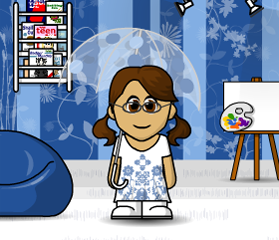
A very simple and inexpensive type of avatar you can create is called a WeeMee.
When you click the Create My Avatar button, you are instantly whisked away to an avatar construction factory.
You can try your hand at building a WeeMee by following these steps:
- Click the Build Your WeeMee Now! button. You are presented with a WeeMee without features and holding a sign saying Male/Female.
- Click the gender you want. All the options for the WeeMee of that gender appear. Depending on the options you select, you may have some animations in your avatar. (It’s hard to make out in black and white here, but the boat is to the left, chugging down the waterway.)
Friday, May 23, 2008
Having Fun with Skype Avatars

Why limit yourself to a static picture if you don’t have to? Skype allows you to create many ways to represent yourself visually. Among these are images called avatars.
The Hindu God Vishnu loved to change shape and appear in the form of a human or an animal. These forms are also called avatars. Because the personality is the same but the form is different, avatar became a handy word to describe images representing (and being controlled by) real people in a virtual environment.
However, computer avatars are not limited to human or animal forms. Some avatars are cartoon characters, robots, talking trees, teapots, smiley emoticons, and whatever your imagination can invent.
Skypers have taken avatar creation to a new level by making use of various avatar software tools. Your new Skype contact may come to you in the form of an image that moves, talks, expresses emotion, and generally reflects, in real time, what the “hidden” personality is saying and doing. You may find yourself talking to a little character that has been custom built to have green hair, violet eyes, a ten-gallon hat, and a golf club. (Sometimes our avatars say more about us than our real looks!) You may even see a dog talking while hearing your friend’s voice in a Skype conversation. Oddly, the avatar concept has come full circle. You not only can appear in the form of dog, cat, or coffee cup but also can take your own photograph —your real image — and turn that into a talking avatar. So, the real you takes on your own avatar form!
 skype
skype
Personalizing Your Skype Profile with Graphics

If you don’t select a photo or image, Skype automatically inserts a cartoonlike “ball headed” icon for you. If you don’t have a photo or artwork, you can use one of the ready-to-use icons that Skype provides. When you click the Change button in your profile, the My Pictures window appears. If you are creating your own graphic, you can use JPG (.jpg) files or bitmap (.bmp) files. The ready-made images installed with the Skype software use PNG (.png) files, so PNG files are also acceptable. When you use an image, Skype automatically scales your picture to fit inside a 96-x-96–pixel swatch.
All the text content of your profile is stored in a centralized Skype database; however, your picture is kept only on your local computer. If you are using Skype both on a computer at work and at home, you need to keep your picture file on both. You also need to adjust your Skype profile on each machine so that the same picture appears.
Subscribe to:
Posts (Atom)