
 When you run the Skype install program, you will first be presented with an introductory window that enables you to choose your preferred language, as shown in the figure that follows. This will select the language used for both the remainder of the installation process and the default language for operation of the Skype softphone. Clicking the Next button in the Setup window takes you to a window that asks you to accept (or reject) the Skype license agreement, as shown in the next figure. Select “I accept the agreement” and click Next to proceed to the final step of the installation process. (Selecting “I do not accept the agreement” aborts the installation.)
Friday, October 30, 2009
Running Skype
When you run the Skype install program, you will first be presented with an introductory window that enables you to choose your preferred language, as shown in the figure that follows. This will select the language used for both the remainder of the installation process and the default language for operation of the Skype softphone. Clicking the Next button in the Setup window takes you to a window that asks you to accept (or reject) the Skype license agreement, as shown in the next figure. Select “I accept the agreement” and click Next to proceed to the final step of the installation process. (Selecting “I do not accept the agreement” aborts the installation.)

Installing Skype in Internet Explorer
 Clicking on the Run button will download the Skype install program to your PC. After it is downloaded, you’ll see the window shown in the next figure. Click the Run button in this popup to start the Skype install program. If you don’t want to install Skype, click Don’t Run to cancel the install process.
Clicking on the Save button will generate the popup window shown in the next figure. Using this window you can choose a folder in which to save the Skype install program. Be sure to remember where you put it, as you’ll need this piece of information for the next step. After the Skype install program has finished downloading, you must run it. The easiest way to do this is to navigate to the Skype install program using the Windows Explorer file browser, and then doubleclick on it. This will run the Skype install program, though you may be asked by Windows to confirm that you want to run this program.
Tuesday, September 29, 2009
Downloading and Installing Skype

To download Skype, visit www.skype.com in Microsoft Internet Explorer (IE) and click on the Download menu item at the top of the home page. This displays the Download Skype page. Click on the link for the Windows platform, which takes you to the download page specifically for Skype for Windows. Next, click on the Get it now button, which displays a page with helpful step-by-step instructions. Click on the Download button, which will then display the popup window shown in the following figure. This popup gives you three ways to proceed:
Run, Save, or Cancel. The third option, Cancel, is fairly obvious in that it cancels the download process. Run and Save can both be used to run the Skype setup program, but they do so in different ways, which I explain in the following sections.
Before downloading and installing the Skype softphone, you might want to familiarize yourself with the user interface—the look and feel of the Skype softphone. That way, when you run Skype, you will already know how to do some basic things with it. Check out the screenshots of the Skype softphone at www.skype.com/download/screenshots.html. Also, look at the online user guides for Skype at www.skype.com/help/guides.
Internet Requirement for Skype Connection

Skype can work with a fast dial-up Internet connection over a telephone line in a pinch, but don’t expect much in the way of quality. For practical day-to-day use, you have to have a broadband connection to the Internet, such as that provided through cable or DSL. To get the most out of Skype, there are two characteristics of your broadband Internet connection that you must pay attention to:
- Bandwidth, measured in bits per second, is a measure of the rate at which data can be transmitted over the connection. The higher the bandwidth, the better your Skype experience will be, as your voice will be clearer during a call.
- Latency, measured in milliseconds, is the delay between when
Most cable and DSL Internet connections are asymmetric in the sense that the rate at which you can send data is different from the rate at which you can receive data. That is, the bandwidth in each direction is asymmetric. Normally the rate at which you can send data is substantially less than the rate at which you can receive data. From Skype’s point of view, the overall quality of a voice call over the Internet will be limited by the minimum of the two bandwidths in either direction: send or receive.
To find out the bandwidth and latency for your Internet connection visit www.numion.com and click on the YourSpeed link, then click on the Quickstart link. This will run a test that will tell you your bandwidth for both send and receive, and tell you the latency for your Internet connection. For a good experience with Skype, you will need a bandwidth of at least 128 Kbps for both send and receive, and a latency less than 500 milliseconds (that is, a latency less than half a second).
Skype Alternatives

Skype isn’t the only Internet-telephony game in town! Even though this book is primarily about Skype, you should also know that there are other Internet-telephony providers that are even cheaper than Skype for some types of call. For example, VoIP Buster offers free calls to regular landline phone numbers in the following countries: Andorra, Australia, Austria, Belgium, Bulgaria, Canada, Chile, Colombia, Croatia, Cyprus, Denmark, Estonia, Finland, France, Georgia, Greece, Hong Kong, Iceland, Ireland, Italy, Japan, Latvia, Liechtenstein, Luxembourg, Malaysia, Monaco, Mongolia, Netherlands, New Zealand, Norway, Panama, Peru, Portugal, Puerto Rico, Singapore, Slovenia, South Korea, Spain, Sweden, Switzerland, Taiwan, Thailand, and Venezuela. In addition, you can even get a free regular dial-in phone number for select countries. Check the VoIP Buster website, www.voipbuster.com, for details and restrictions.
You might also want to check out some of the other alternatives to Skype shown in the following table. This list is by no means exhaustive, but it’s a starting point for you to shop around for the best deal—and best features—in Internet telephony.
Sunday, August 30, 2009
Skype’s fee-based features
 Briefly, Skype’s fee-based features include the following:
- SkypeOut: Using SkypeOut, Skype users can call fixed and mobile phones at very low rates—in some cases, as low as 2¢ per minute.
- SkypeIn: SkypeIn provides a dial-in number that enables regular and mobile phone users to call Skype users. A SkypeIn number—and you can have as many as you want—costs $35 per year, or $12 for 3 months.
- Voicemail: Skype Voicemail ($6 for 3 months or $18 for a year) is for those times for when you are away from your PC or busy on another call and don’t want to miss any incoming calls. As an added bonus, as a Skype Voicemail subscriber, you can send voicemail messages to other Skype users, even if they aren’t voicemail subscribers themselves!
- Skype Zones: If you want to use Skype while on the move, this might be for you. Skype Zones gives you access to more than 18,000 wireless Internet access points around the world from which you can make and receive Skype calls. In fact, you can use all the usual features of Skype, including any Skype services (SkypeOut, SkypeIn and Skype Voicemail) to which you have subscribed.
- Skype Control Panel: Skype Control Panel is targeted at business users of Skype who want to have a central administrator for several accounts, to simplify payment and management of Skype services. This service might also appeal to individuals who maintain several Skype accounts. The Skype Control Panel and other business-oriented features of Skype are not covered in this book, but additional details can be found online at www.skype.biz.
- Personalise Skype: Using this service you can buy personalized pictures to add some pizzazz to how others see you online and buy custom ringtones that make Skype more pleasant and fun to use.
Free Features of Skype
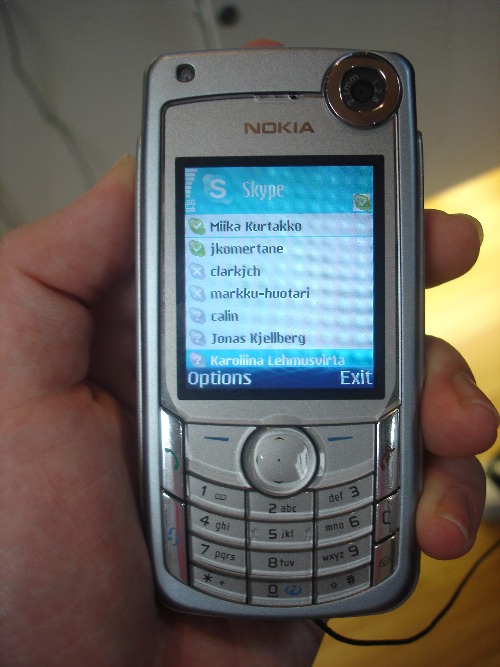
Skype’s free, basic features are as follows:
- Skype-to-Skype calls: Skype-to-Skype calls are free and always will be for noncommercial calls—regardless of location or duration!
- Video calls: Skype allows you to see the other person during a voice call if both people have Skype-compatible video cameras and both have enabled this feature in Skype. With Skype video, you can talk face-to-face with someone else regardless of distance, and it won’t cost you a penny!
- Toll-free calling: Skype users can make free calls to most tollfree numbers, whereas some other Internet telephony providers charge for such calls. As an added bonus, you can even call tollfree numbers in other countries, which is something that regular phones often can’t do!
- Conference calls: You and up to four other people can conference-call together at the same time. Moreover, during a conference call, participants can also chat together and transfer files to one another (or to all participants) by simply draggingand- dropping files.
- Call forwarding: Away from your PC, but don’t want to miss any important calls? No problem, just use Skype’s callforwarding feature. Using call forwarding, Skype-to-Skype calls and SkypeIn calls from regular phones can be forwarded to as many as three Skype accounts or regular phone numbers (of course, you can only forward calls to regular phones if you are a SkypeOut subscriber, in which case the call rate appropriate to the call’s destination will apply).
- Chat: Using Skype’s chat feature you can exchange text messages with another Skype user in real time.
- Multi-chat:Why limit yourself to one-on-one chat? With Skype’ multi-chat feature you and a bunch of friends, family members, or work colleagues (up to 50 in total) can chat online in real time so that all text messages are seen by all chat participants.
- Chat emotional icons: Otherwise known as “emoticons,” these small icons can be inserted into text messages during chat sessions so that chat participants can quickly and easily express their emotional state or emotional response to chat activity in real time.
- File transfer: You can transfer a file to one or more Skype users from within your contacts list at any time or with anyone during an active Skype-to-Skype call or chat session. And you can do all this with little more than a rightclick of your mouse, or by dragging-and-dropping a file.
- Contact management: Add your own contacts, search Skype contacts, import existing contacts held outside Skype, share your contacts with other Skype users, and group contacts into meaningful categories for convenience and to carry out group-specific tasks, such as conference calls, with a click of the mouse.
- End-to-end encryption: Skype uses encryption to scramble data so that it is unintelligible to any eavesdropper while it is being transmitted over the Internet. This means that Skype-to-Skype calls are more secure than regular or mobile phone calls! However, calls that use the public telephone network through SkypeOut and SkypeIn are not encrypted—and so are less secure than Skype-to-Skype calls—once outside the Skype network.
- Privacy controls: Control who can call you, who cannot call you, or who can chat with you.
- Visibility controls: Using Skype’s online status settings you can control how visible, or invisible, you are on the Skype network.
- Mood messages: As part of how you are seen by others on the Skype network, you can choose to post a mood message that will be seen when another Skype user clicks on your entry in their contacts list. Mood messages can display any sort of short text message.
- Skype toolbars: Skype provides productivity-enhancing toolbars for Microsoft Outlook and Internet Explorer that more closely integrate those applications with Skype.
- Skype buttons: Using Skype buttons, you can add a clickable button to a web page, your e-mail signature, or your blog that allows others to easily interact with you though Skype.
- Multi-platform support: Skype runs on Windows, Mac OS X, Linux, and Pocket PC. This book focuses on Skype for PCs running Microsoft Windows.
- Multi-language support: The Skype softphone is available in 27 languages.
- No spyware, adware, or malware: More of a promise than a feature, this is a commitment by Skype to keep their software free from all other software that might spy on you, pester you with advertising, or otherwise maliciously interfere with your PC.
Subscribe to:
Posts (Atom)