Showing posts with label a14. Staying Connected via Skype. Show all posts

Tuesday, January 13, 2009

Bridging Skype with Your Outlook Contacts


Skype is all about connecting with people. And when you use SkypeOut, you are only a click away from making that connection. But here’s a problem: All the information about the people you want to connect with (your contacts) may live on a separate island known as Outlook. Wouldn’t it be nice if Skype could just take a peek at your Outlook contacts, see their phone numbers, and skype out to them by clicking on their phone numbers from within Skype? Starting with Skype version 2.5 and later, you can make this happen by following two simple steps:
  1. Open both your Microsoft Outlook program and Skype (on Windows) so that the two programs are running at the same time.
  2. Choose View>View Outlook Contacts from the Skype menu. Don’t confuse the Outlook program with Outlook Express. Skype and Outlook work together very happily, but you won’t get Outlook Express to share information with Skype.

Making it short and sweet with SMS messaging

The blossoming of technologies for communication shows that people crave constant contact with each other. Nowhere is this trend more evident than in the popularity of text messaging, which is a communication method that teenagers use frequently because it’s fun, easy, and (perhaps) even addictive. Many people find that text messaging is practical, even though it has these two drawbacks:
  • Limited screen size for message viewing: Any text message sent must be viewable from a tiny cell phone screen.
  • Tedious and time-consuming creation: Typing a message — beyond a short sentence or two — takes more patience and time than most people (especially teenagers) are willing to invest.
To help work around these text messaging limitations, a communications standard — the Short Message System, or SMS messaging — exists for a variety of mobile phones and other devices such as Pocket PCs and GSM (Global System for Mobile Communications) phones. And when you’re running Skype, the circle of devices offering SMS text messaging capability even includes your desktop computer.
Sending SMS messages via Skype involves these simple steps:
  1. In your Skype menu, choose Tools>Send SMS Message. A window pops up, prompting you to select the recipients you want to receive your message. Recipients need not be Skype Names. You can also enter phone numbers.
  2. Add the Skype Names or phone numbers of your message recipients and click OK. An SMS message window appears.
  3. Enter your text message in the Skype SMS window (see Figure) and click the Send SMS button.
The Skype Names or phone numbers of the recipient(s) appear in the title bar of the Skype SMS window.
That’s all there is to sending the text message with Skype, but here are some points to keep in mind about this service:
  • SMS messaging has a cost attached: When you use SMS messaging, you pay a small fee that’s based on two things: the length of your message and the number of recipients getting the message.
  • Charges apply only to messages delivered within 24 hours: When you send a message, you are charged only if the message reaches the person within 24 hours. If the recipient’s GSM phone battery is dead or his or her phone is off, you get a refund.
  • Watching your message length is a good idea: The maximum size for any SMS message is 160 characters. So if you send a message with 167 characters, it is split into two SMS messages with 160 characters in the first and 7 in the second. In this situation, you are sending two messages instead of one and you’ll be charged accordingly.

Tuesday, December 30, 2008

Forwarding calls when you can’t answer

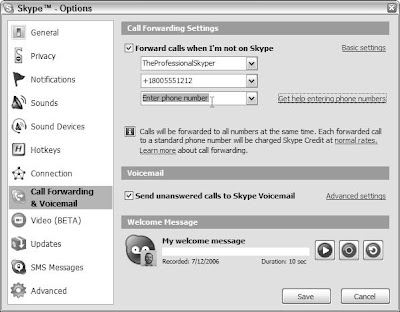
Skype’s call forwarding feature is very simple to set up and operate. It works like this: If someone calls you on Skype and you’re not able to answer, the call is routed to the first Skype ID or SkypeOut number in your call-forward list. If the call receives no answer there, it is routed to the next number on your call-forward list.
You can call forward to as many as three Skype IDs or SkypeOut numbers. Skype-to-Skype forwarding is always free. Forwarding to a landline or to a cell phone incurs the regular SkypeOut charges and requires that your account have SkypeOut credit. The account that does the skyping out pays for the call, which makes sense. Suppose you’re in the United States and, from your PC, you skype someone located in France. If that person has enabled call forwarding to his or her cell phone, then he or she (and not you) incurs the SkypeOut charges.
For basic call forwarding, follow these steps:
  1. Start Skype and choose Tools>Options from the main menu. The Skype Options dialog box appears.
  2. Click Call Forwarding & Voicemail.
  3. Select (check) the Forward Calls When I Am Not on Skype check box, enter the Skype name you want your calls forwarded to in the Enter Phone Number combo box, and click Save.
For call forwarding to more than one Skype name or SkypeOut number, follow these steps:
  1. Start Skype and choose Tools>Options from the main menu. The Skype Options dialog box appears.
  2. Click Call Forwarding & Voicemail.
  3. Click the Advanced Settings link, select (check) the Forward Calls When I Am Not on Skype check box, and enter the Skype names you want your calls forwarded to in the Enter Phone Number combo box.
  4. Enter the additional Skype names or SkypeOut numbers (see Figure) as appropriate in the remaining Enter Phone Number combo boxes and click Save.
If you are uncertain how to enter a SkypeOut number, click the Get Help Entering Phone Numbers link, which takes you to the Web page at www.skype.com/products/skypeout/rates/dialing.html. This page provides assistance on correctly entering SkypeOut numbers, including looking up the appropriate country codes.
You must have Skype credit to forward a call to a SkypeOut number. Interestingly, Skype Voicemail does not record forwarded messages. Systems such as Pamela (described later in the chapter) do, and they add some other very cool features. Skype Voicemail and call forwarding offer basic functionality, but other messaging features in Skype (such as SMS messaging) and add-on products that work with Skype (such as Skylook and Pamela) offer you more.